|
Having trouble viewing this email? View it in your browser.
|

|

Introducing MOWI™
Wi-Fi Sensors

New MOWI™ Wi-Fi sensors work with any existing Wi-Fi network. All Monnit Wi-Fi sensors come with FREE basic online sensor monitoring and alerting through the iMonnit Online Monitoring System, providing access to all of your sensor data and alerts via SMS text or email if a user defined condition is met or exceeded.
Monnit MOWI™ Wi-Fi Sensor Features
• Works with existing Wi-Fi networks
with 802.11 b/g
• Supports Open, WEP, WPA and WPA2 Wi-Fi security protocols
• Standard Wi-Fi device range*
• Data logging feature if Wi-Fi networks are un-available.
• Status / Activity LED
• 2 replaceable 1.5V "AA" batteries
• Batteries last up to 5 years.**
* Actual range varies depending on environment. MoWi sensors
perform typical to standard Wi-Fi devices.
** Battery life is affected by reporting frequency (heartbeat),
sensor type, Wi-Fi security type, distance from Wi-Fi
router and other variables.
Learn More About Monnit Wi-Fi Sensors »
|
In this issue
|
|

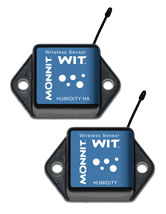
Monnit Wireless Humidity Sensors
Monnit wireless humidity sensors allow you to monitor the relative humidity of air within a room or enclosure. Ideal for monitoring humidity within greenhouses, industrial spaces, museums, saunas and humidors. They can also be used for residential applications such as controlling mold, mildew or dust mites. User customization allows you to set the frequency of readings and the ability to set thresholds for alerts.
Monnit Humidity Sensor Features
• Scientific grade sensor
• +/- 1.8% accuracy ( 10% - 90% RH ) - High Accuracy
• +/- 2% accuracy ( 50% - 90% RH ) - Standard
Learn More About High Accuracy Humidity Sensors »
Learn More About Humidity Sensors »
|
|


|

|
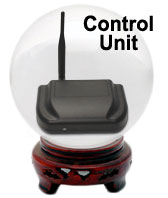
Let's take a look in our crystal ball to see what the future holds at Monnit?
The Monnit development team is always working on products that will enhance our current product offering based on customer needs. The Monnit wireless sensor system supports bi-directional communication which can be used to allow simple control function. Our development team is working on a new control unit that can be used to control low power servos and switches; ideal for data centers, sump pump control and other light industrial applications. If you would like to learn more about this product update or be notified when it becomes available, please email us at sales@monnit.com.
back to top
|
|

|

Remote Monitoring
Solutions For Business
No matter the size of your business, it is critical to understand things as they happen! Whether monitoring a refrigerator temperature to avoid food spoilage or monitoring doors and windows for unauthorized access, it is important to know immediately. Monnit wireless sensors provide an easy-to-use, robust, remote monitoring solution that alerts you immediately if something is wrong.
Using Monnit wireless sensors provides peace of mind when it comes to knowing if any conditions come up at your business. We recommend using Monnit's affordable wireless open/closed sensors to monitor doors and windows for un-authorized access. We also recommend using Monnit's wireless temperature sensors and Monnit's wireless water sensors to monitor for potential temperature and water damage.
Protect Your Business Investment with Monnit Wireless Sensors!
Learn More »
back to top
|
|

by The WiSe Guys
|

Setting up and using the New MoWi Wi-Fi Sensors.
We have taken the time to make our new Wi-Fi sensor line the easiest wireless sensors to use yet. This tech-tip demonstrates the setup process for using these new sensors. For a complete video walkthrough of the setup process visit www.mowisensors.com.
1. Download and Run the MoWi Setup Application.
• Visit www.mowisensors.com and download the
Monnit Wi-Fi sensor setup application.
• Launch the Wi-Fi setup application.
Note: The application is self-running and does not install
on your computer.
• Create a new account if you are a new user or login if you already have an iMonnit account.
2. Download and Install the USB Cable Driver.
• Download the driver from https://www.mowisensors.com/downloads/CP210x_VCP_Windows.zip.
• When the file has completed downloading, open the download folder and unzip the file
"CP210x_VCP_Windows.zip". (Right-click the file and choose "Extract All".)
• Open the folder that was created and launch the appropriate driver installer.
• Launch "CP210xVCPInstaller_x64.exe" for 64-bit computers
• Launch "CP210xVCPInstaller_x86.exe" for 32-bit computers
• Click "Run" then follow the on-screen instructions to complete the installation.
• When finished, insert the USB side of the included cable into an available port on your PC.
When inserted, your computer will automatically finish installing the USB driver.
3. Add Sensors To Your Wi-Fi Network and iMonnit Account.
• Insert two AA batteries into the MoWi sensor. The LED will flash green while the sensor looks for
an authorized Wi-Fi network, then flash red if none is found.
• Plug the USB cable into a MoWi Sensor. When plugged in, the software will automatically update
to show the sensor's information.
• Select the Wi-Fi network you want to use the sensors on and enter the security credentials.
If you don't know your Wi-Fi network SSID, you can use the connected MoWi sensor to
search for an available wireless network. To search, click the arrow to the right of the SSID field
and select "Search for Networks". The field will update with all available wireless networks.
Select the one you wish to use.
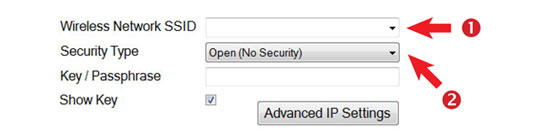
• After selecting the Wi-Fi network, choose the type of security used then enter the pass phrase. If
using an open (non-secured) access, no pass phrase is needed.
• When all information has been entered, click the "Assign Sensor to Wi-Fi Network" button. The
configuration information will be programmed to the sensor and the sensor will be added to your
iMonnit online account. When the process is complete, you will see a successful operation pop-up.
Click "OK" to close this window. It is now safe to unplug the USB cable from the Wi-Fi sensor.
For more information on using Monnit wireless sensors, visit the support section of our website.
back to top
|
|
 |
|
All trademarks are property of their respective owners. © 2013 Monnit Corp. All Rights Reserved.
Monnit Corporation / Phone: 801-561-5555 / www.monnit.com

|
|
|